To setup the email account we will need:
Internet connection:3G, 4G, Wifi
Agnitek email: Username and Password
Step 1:
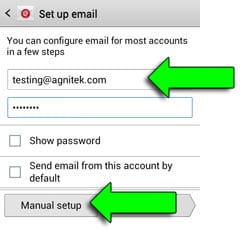
Enter your email address and password.
Then click on the Manual Setup button.
Step 2:
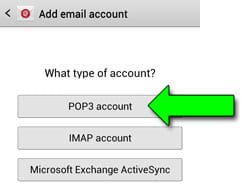
Click on the POP3 Account button
Step 3:
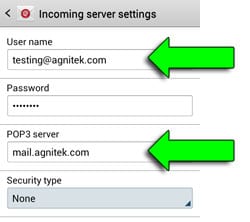
Your User name needs to be your full email address
The POP3 server needs to be: mail.yourdomain.com
Then click on the Next button at the bottom
Step 4:
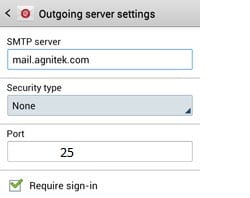
Your outgoing server settings should already be correct
SSL is Off (NONE)
Incoming Port: 110 (if that does not work try: 145)
Outgoing Port: 25 (if that does not work try: 2525)Click on the Next button at the bottom
Step 5:
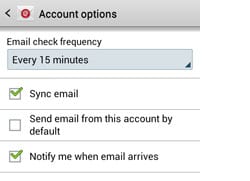
The default account options are fine, you can change them if you wish
Click on the Next button at the bottom
Step 6:
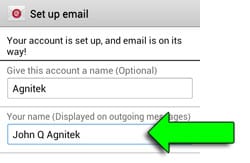
Update your name, that is the name people will see when they receive an email from you
Click on the Done button at the bottom