Skip to content
979-260-8324
[email protected]
979-260-8324
[email protected]
MENU
About AgniTEK
Client Success Stories
Mission and Vision
History and Recognition
Web Services
Website Design & Promotion
Hosting & Cloud Solutions
Hosted Microsoft Services
Email Solutions
Website Hosting
Application & Database Development
Search Engine Optimization
Local Business Listing Report
Website Link Building
Domain Name Registration
Client Resources
Domain Name Renewals
Client Support
FAQ’s
Written Instructions
Email Resources
Contact
E-Mail- Setup Autoresponder
Home
Written Instructions
E-Mail- Setup Autoresponder
webuadmin
2024-09-12T14:15:24+00:00
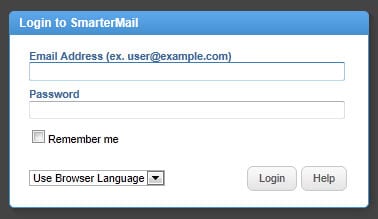
1. Login to your webmail account at: https://webmail.agnitekhosting.com
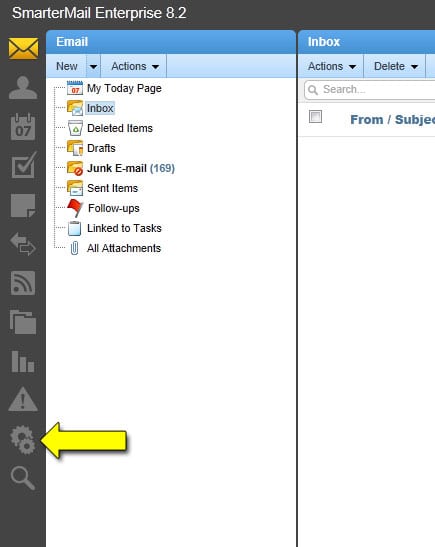
2. Select the Settings icon from the far left column of icons. It’s the second-to-last icon and looks like 2 gears.
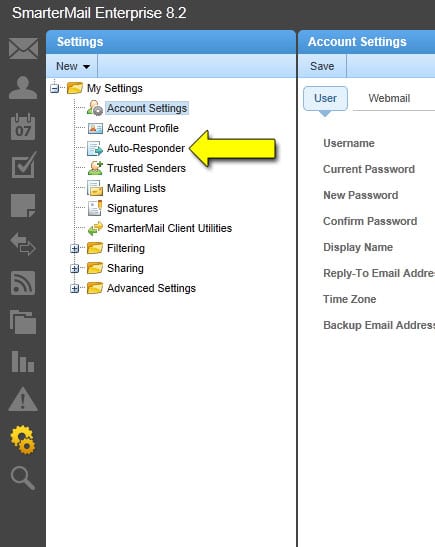
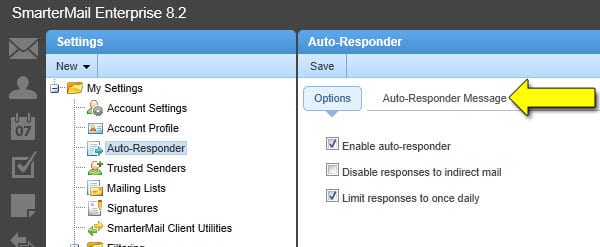
3. Select Auto-Responder from the Settings menu.
4. Click the checkbox for Enable auto-responder.
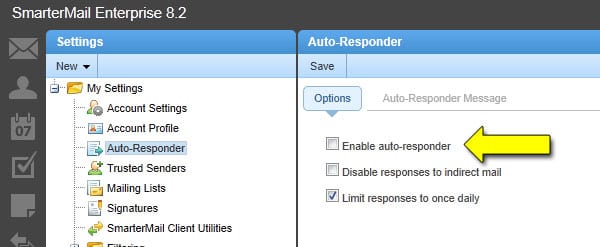
5. Click the Auto-Responder Message link.
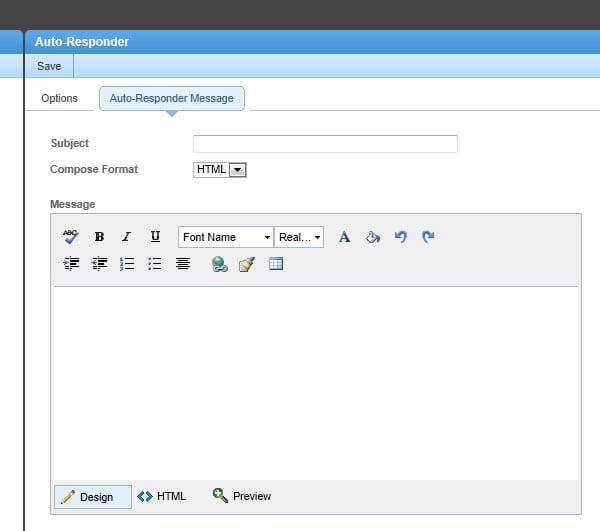
6. Give the auto-responder a Subject and Message then click the Save button at the top.
Page load link
Go to Top